Auto Respond CTA
Continuing from the previous chapter where the carousel has been approved, you need configure the respond from each of the call to action button the carousel card.
Step 1: Differentiate the CTA buttons that has same name.
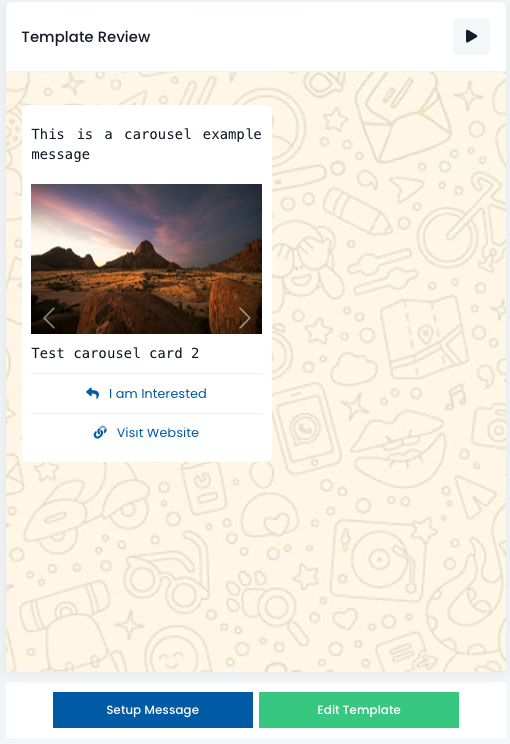
In the campaign template, click on the campaign name. As you can see, each of the carousel card has the button named 'I am Interested' and how does WhatsApp knows which button has been pressed. Click on the 'Setup Message' button.
Step 2: Configuring the CTA buttons.
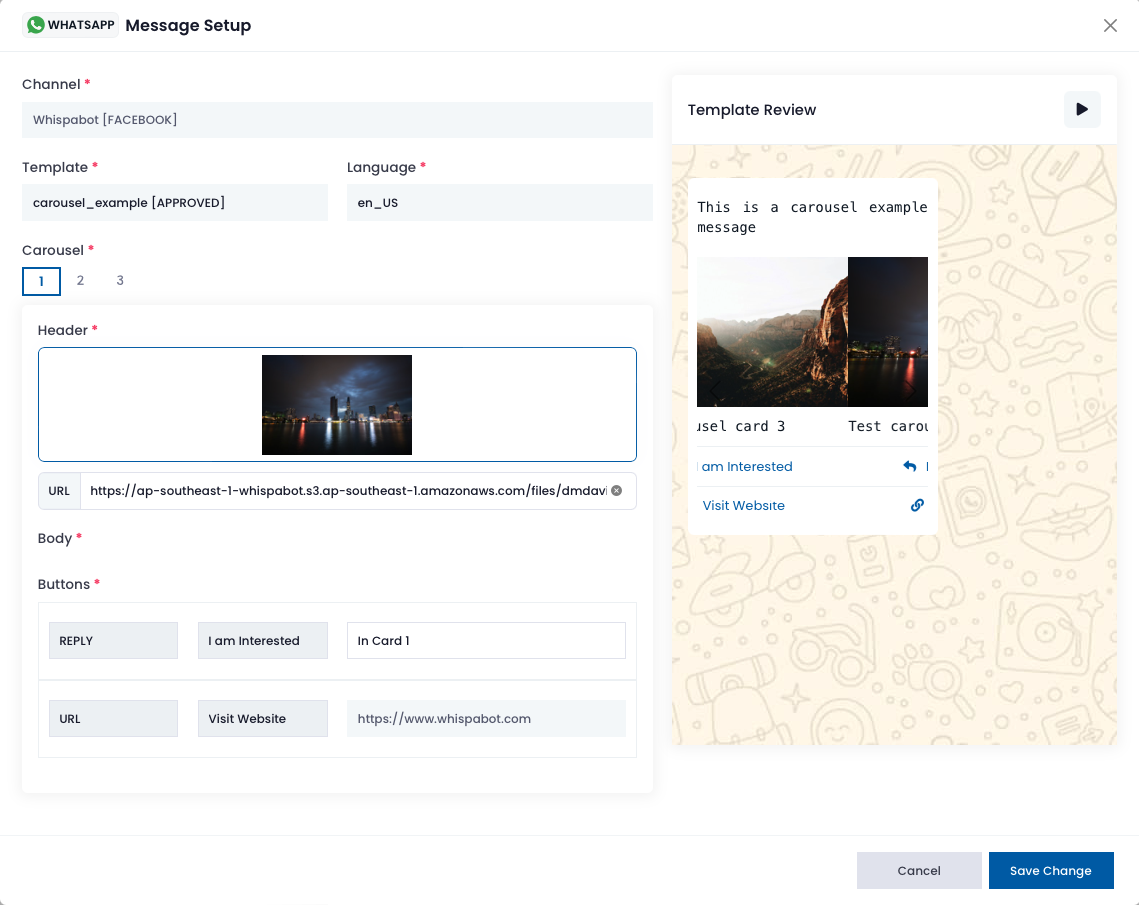
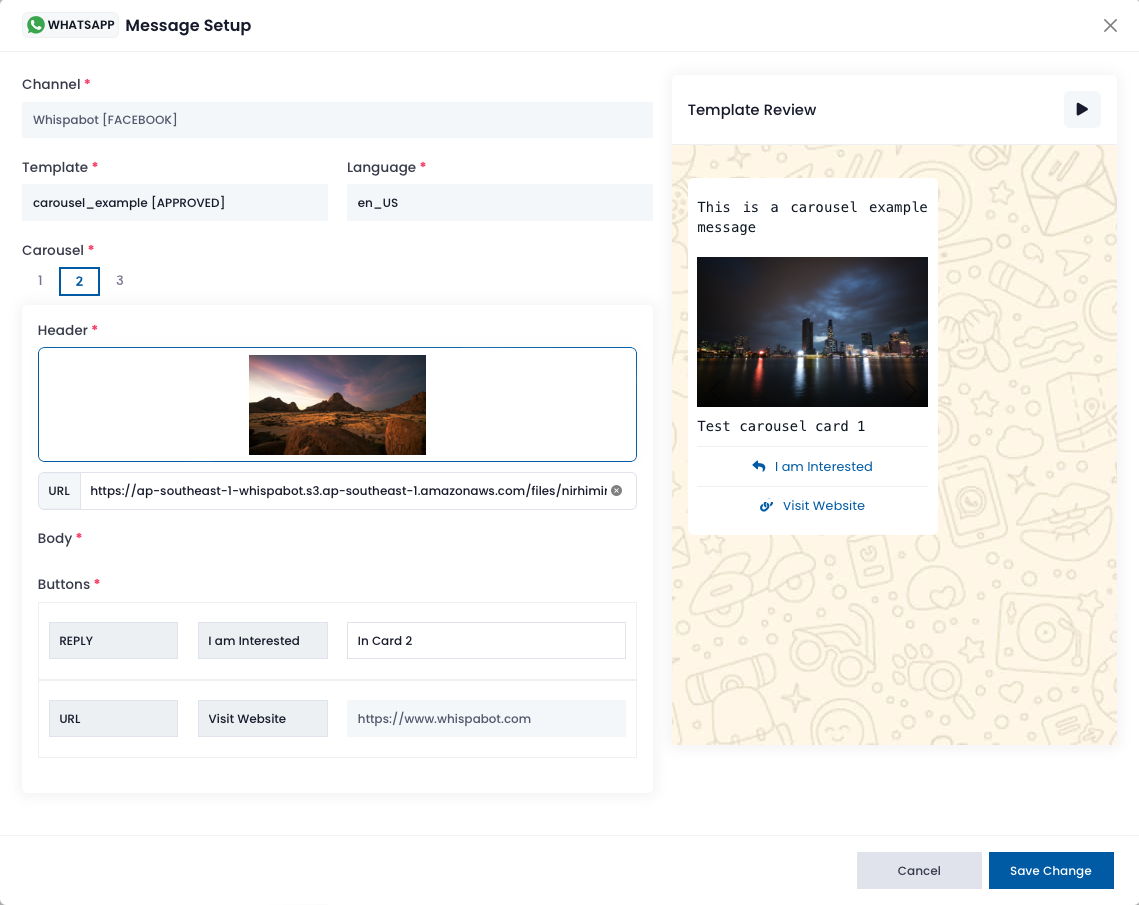
The CTA buttons of 'I am Interested' has the same name for all cards in the carousel. There is an editable field where you can put a different identifier for each of the cards.
The original text of 'I am Interested' has been changed to 'In Card 1' and it can be any text that you preferred. Once the label has been change, click on 'Save Change' button to save the changes.