Carousel
Setting up carousel message will require user to setup the routing for each of the carousel card. Follow the steps closely to ensure that the carousel is functioning accordingly.
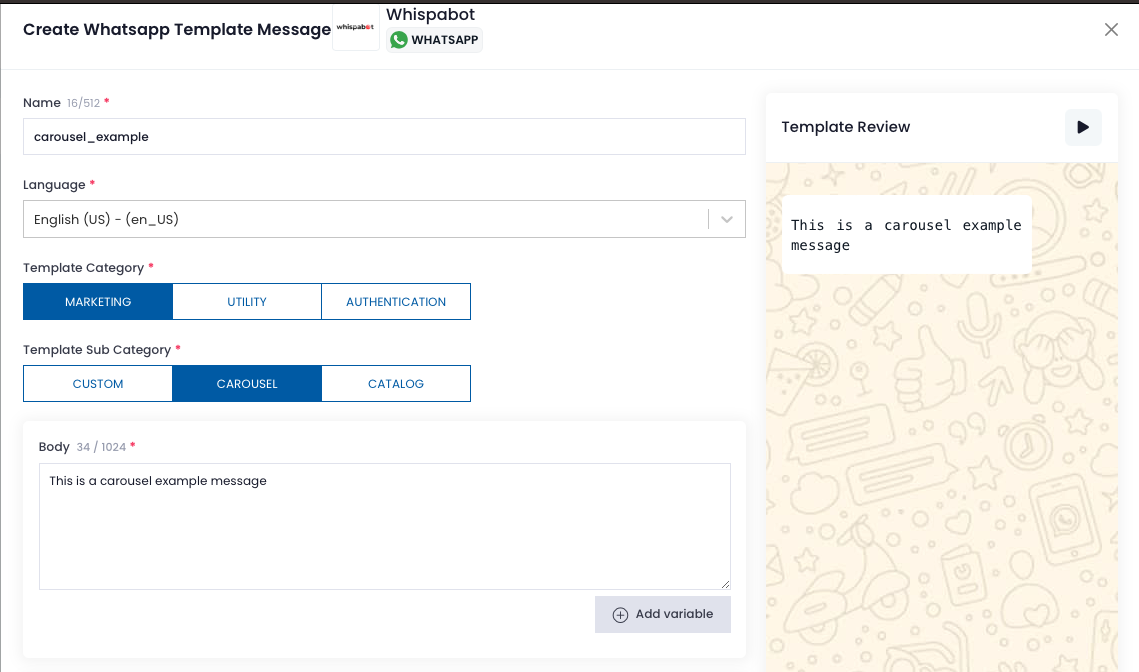
Step 1: Template selection and editing the body text content.
Select marketing category and carousel as template sub category. Fill in the body text. To start adding a card for the carousel, click "Add Card" button in the carousel section.
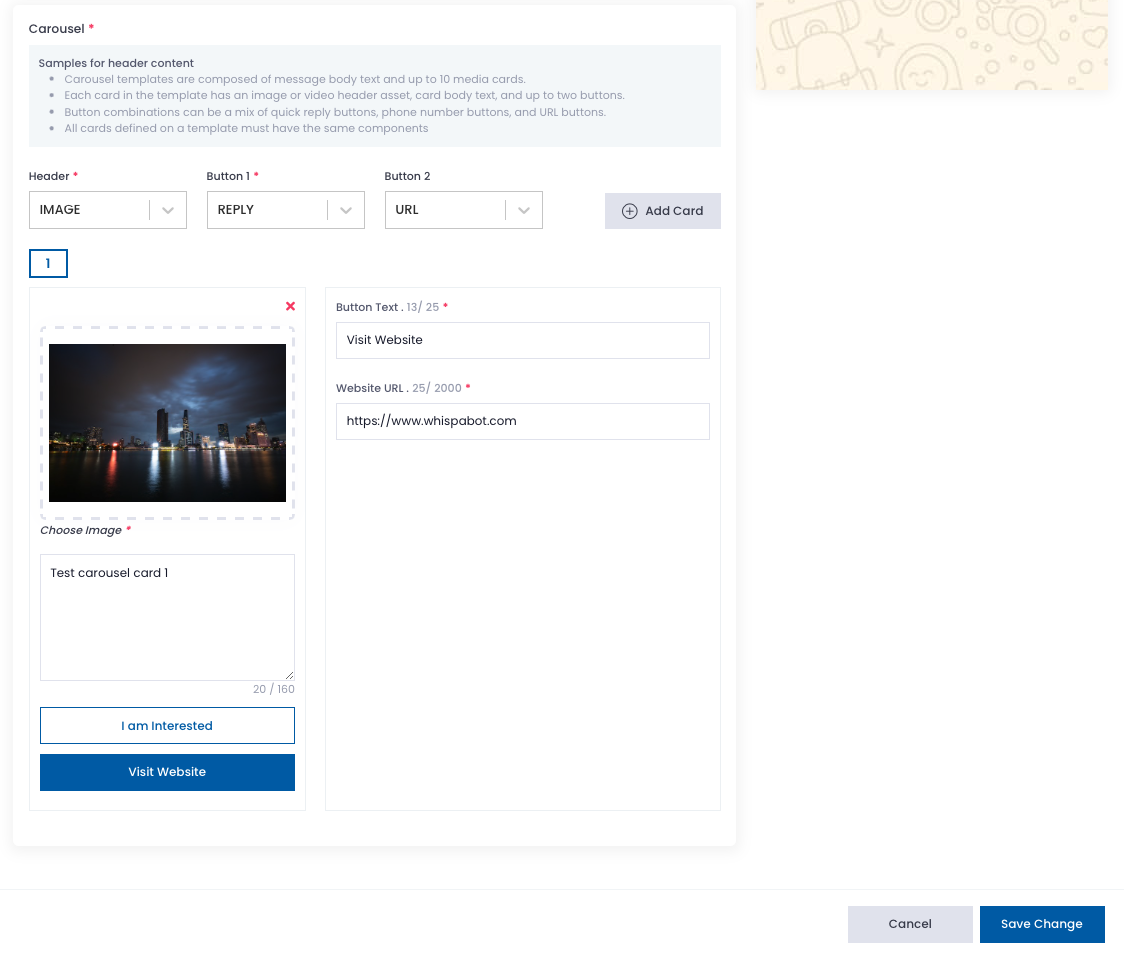
Step 2: Creating the carousel cards.
In the header, you can either select Image or Video. Once this is selected, it shall applies to all cards within the carousel. Upload the image or video and put in the text. The message can have a maximum of 2 call to action buttons. You can edit the button text and fill in the information according to your selection of the CTA button.
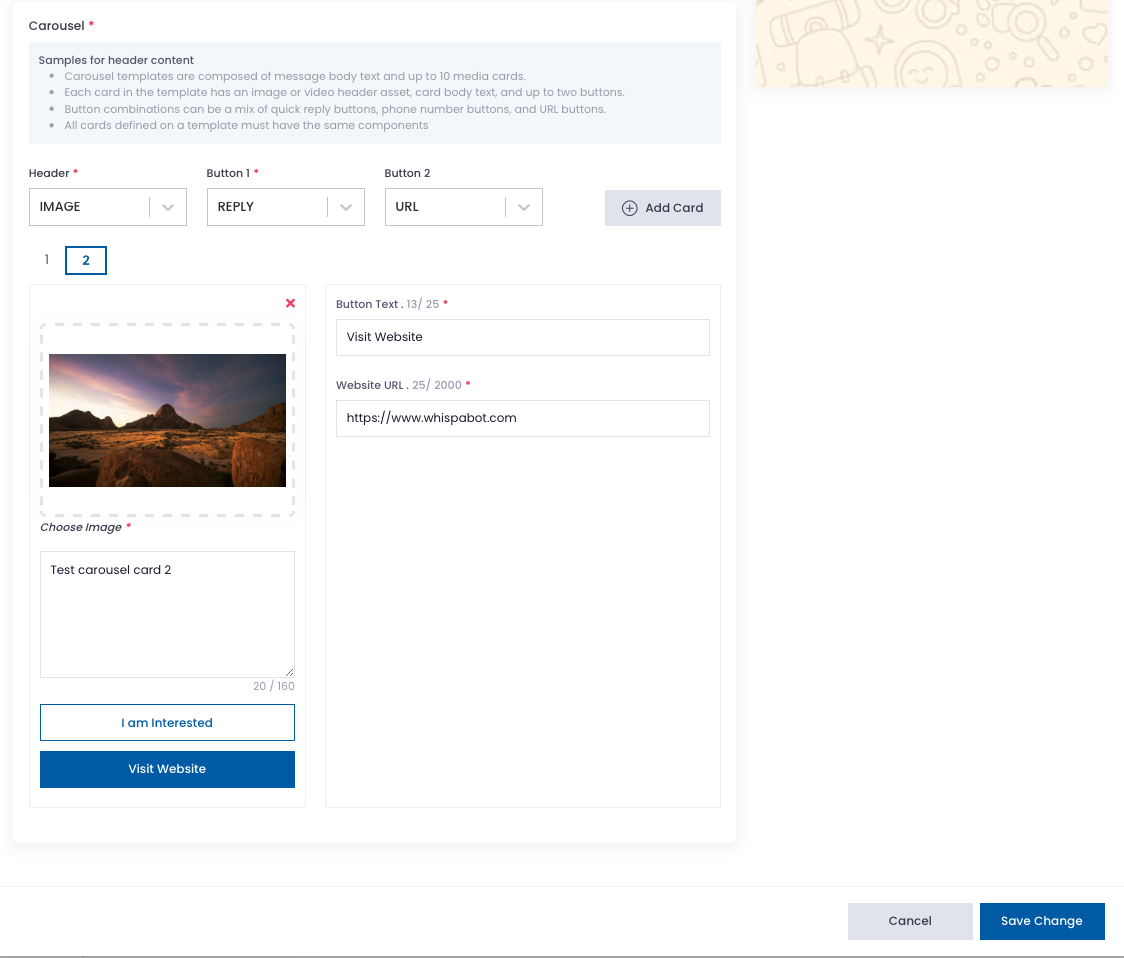
Step 3: Add more cards to the carousel.
If there is more than one card in the carousel, click the "Add Card" button again to add in more cards. Users can only have a maximum of 10 cards in a carousel. This is according to WhatsApp policy.
Once all the cards has been added into the carousel, click 'Save Change'.
Step 4: Wait for Template approval from Meta.
Once the template is submitted, you may see that the status is 'Processing'. Please wait until the status is 'Approved' or you may click the 'Sync' button at the Action column.

