Message Respond
You need to setup a message to send to user when user press on any of the call to action button. These messages is part of the conversation and shall be created as a conversation template.
Step 1: Create a new conversation template.
Create a new template by clicking the '+ Template' button and create a conversation template. Once the template has been created, click on the name of the template to configure the conversation.

Step 2: Create conversation message.
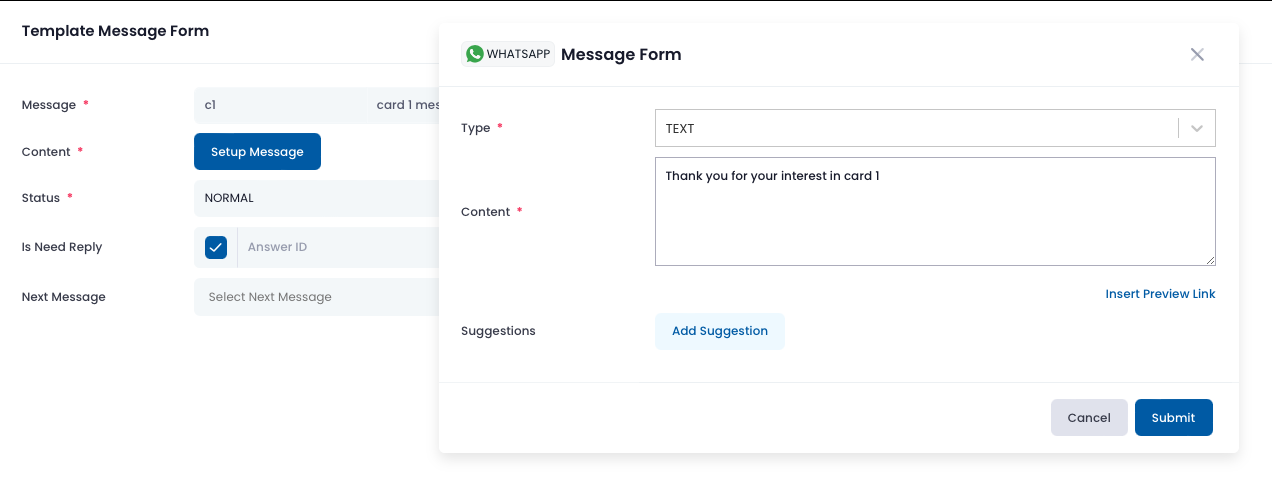
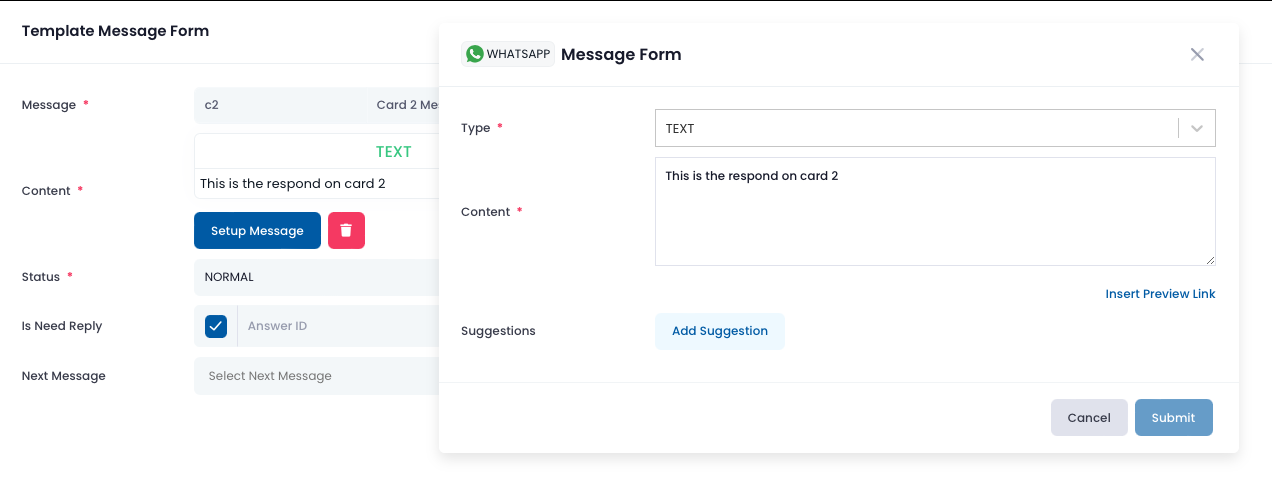
When the blank screen appears, click on the '+ Message' button on the top right. Fill in the template message form, click on the setup message and fill in the message form. This is the example message that will be sent when user click on 'I am Interested' button in card 1. Create another message for card 2. Finally, click Submit.
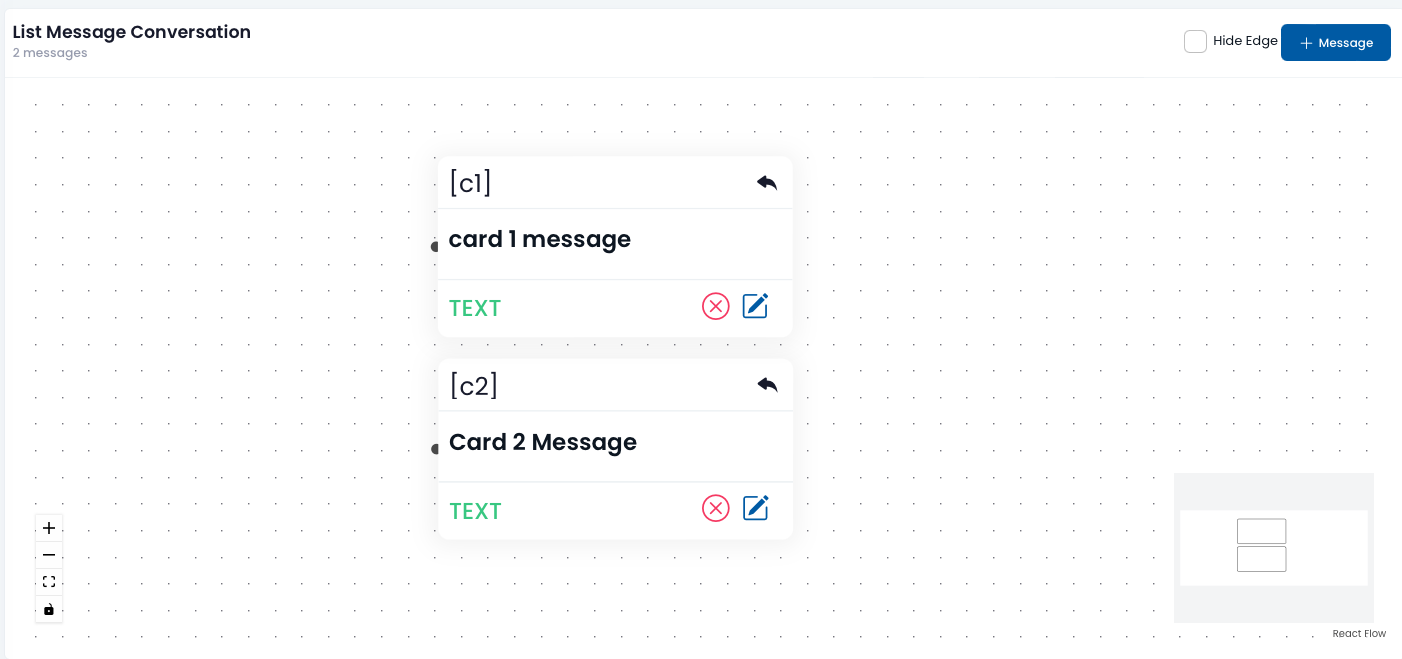
You shall be able to see 2 messages on your screen as shown below.
Step 3: Routing the CTA to the respective message.
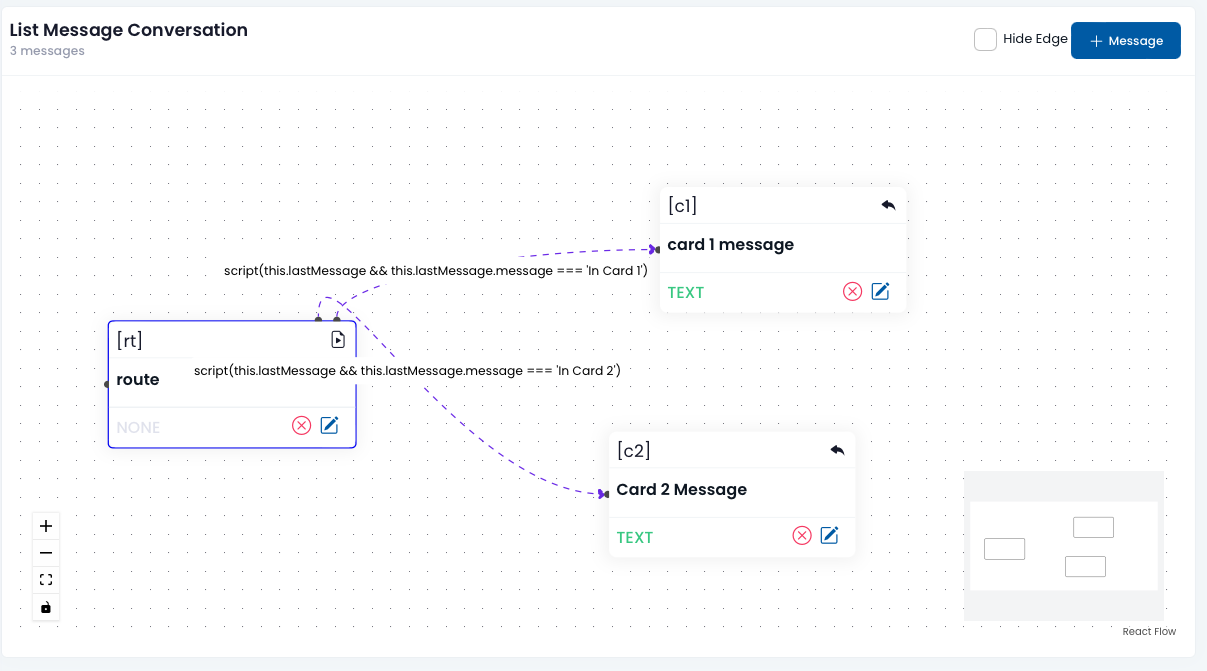
Create a route script to handle the routing from carousel CTA to the conversation message. Click on '+ Message' to add a message. Follow the settings below and as shown in the diagram.
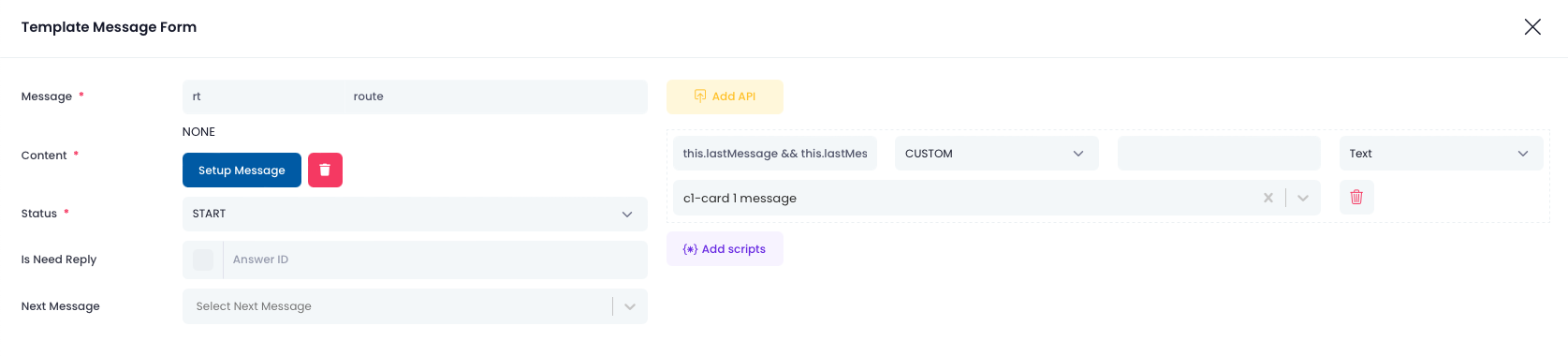
Message: Give a name to the message. Example 'Route'.
Content: Click 'Setup Message' and select None.
Status: Select Start.
Is Need Reply: Unchecked.
Next Message: Leave blank.
Click on the 'Add Scripts' button.
Variable: this.lastMessage && this.lastMessage.message === 'In Card 1'
Note: copy this script to the variable field, change the 'In Card 1' to the text following the one that was inserted into the carousel card.
Select Script OP: Choose 'Custom'.
Script/Value: Leave a space (press spacebar).
Select Data Type: Choose 'Text'.
Select next message: 'c1-card 1 message'.
Note: This message is for this example. In your case, you should choose the message that you want to send user when user press on the respective CTA button.
Next Step: Create the similar structure message for the next CTA button of the carousel.
When the routing is completed, your screen shall show somthing similar to the diagram below.
Step 4: Handling error message and restart response.
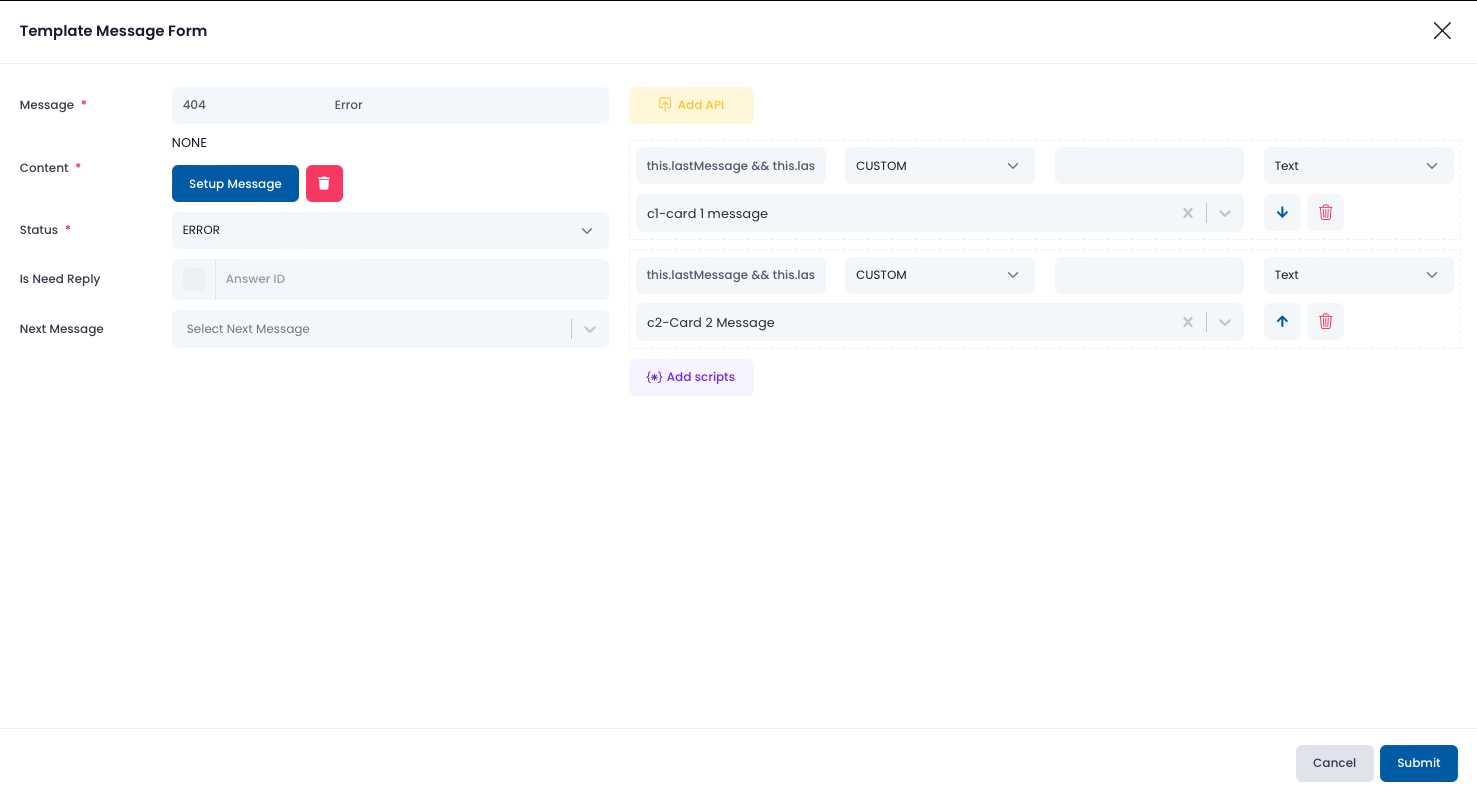
Click on the '+ Message' button to create a new message. In the template message form, fill in the information.
Message: Any error code and message name.
Content: Click on Setup Message and select None.
Status: Choose Error.
Is Need Reply: Unchecked
Next Message:Choose a message if there is one to send to users. Elsejust leave it blank.
Add Scripts: The scripts shall be similar to the ones created in step 3.
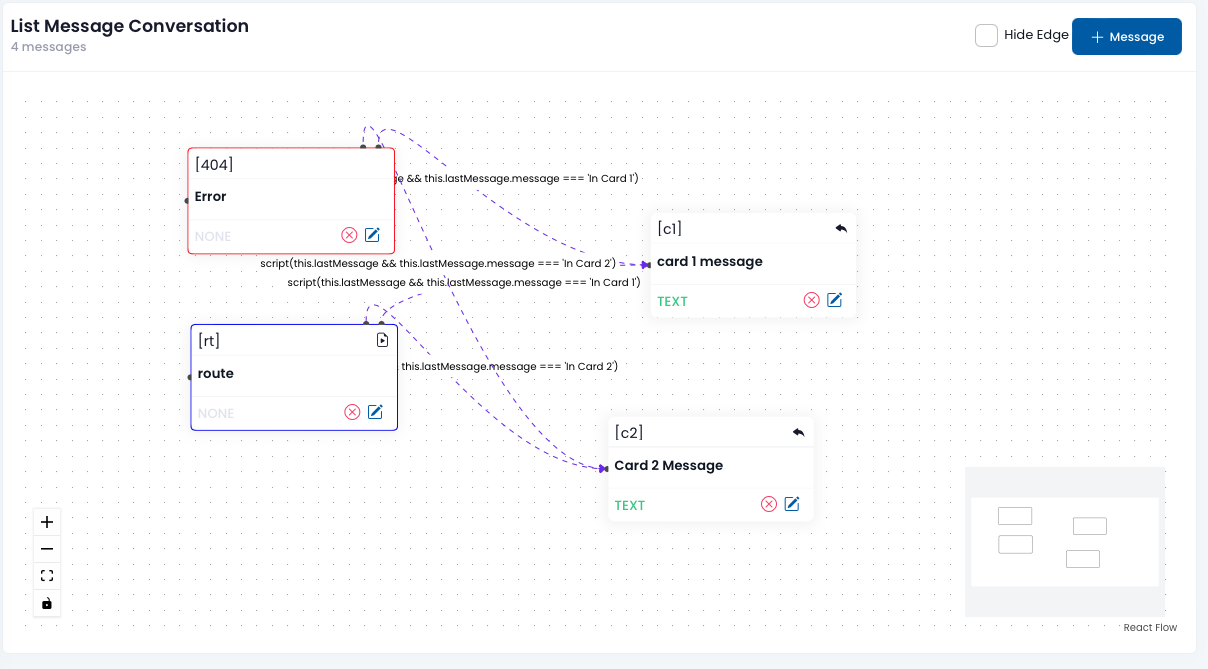
Once the error message has been configured, you shall see the list of message similar to the diagram below.
Once the carousel template is completed, you can create the WhatsApp Campaign to broadcast the marketing message.