Broadcast Campaign
In this page, we will guide you on how to import your contacts and broadcast the WhatsApp message that you had created to the users in your contact list. Once your campaign has been created, you will see it in your campaign list.
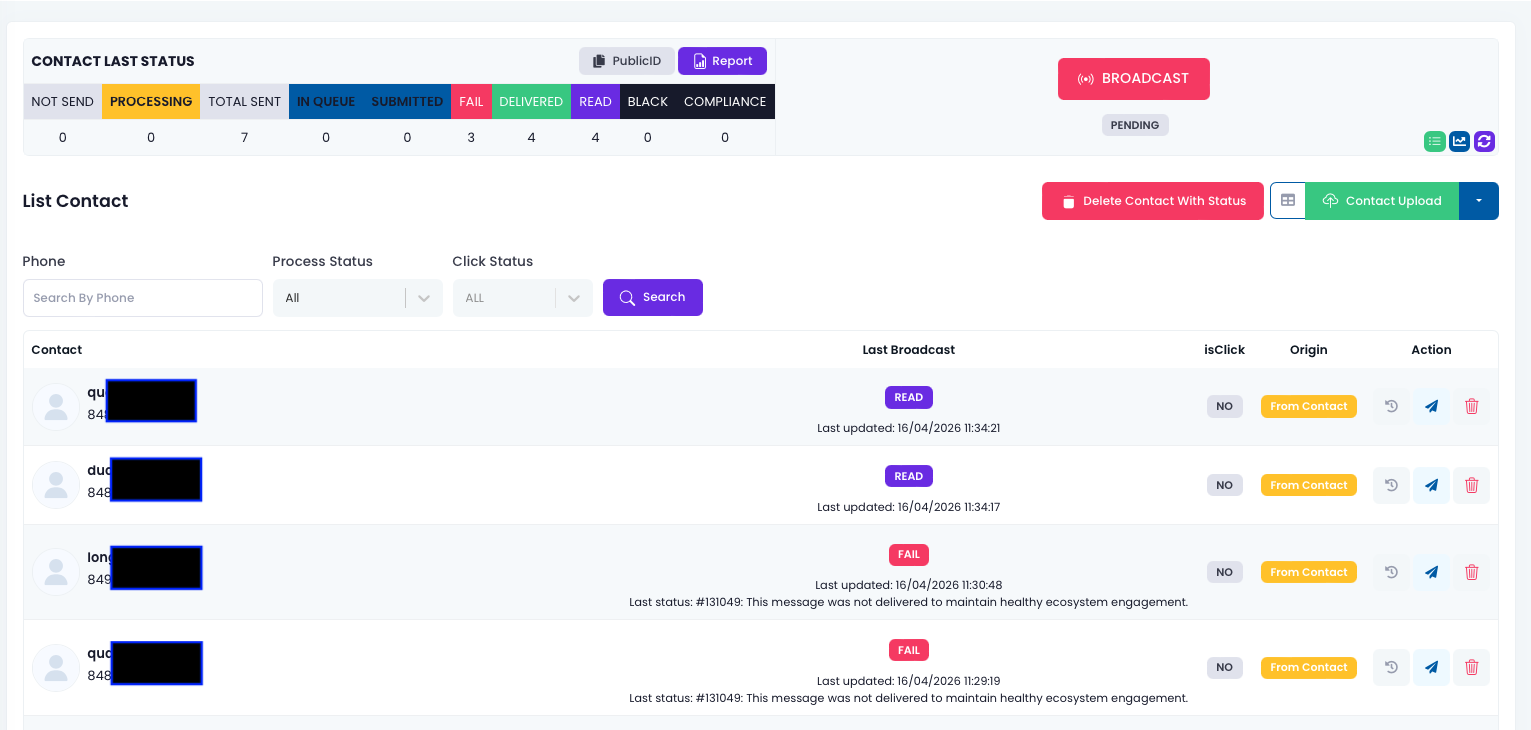
Click on the first button (Broadcast) on the Action column.

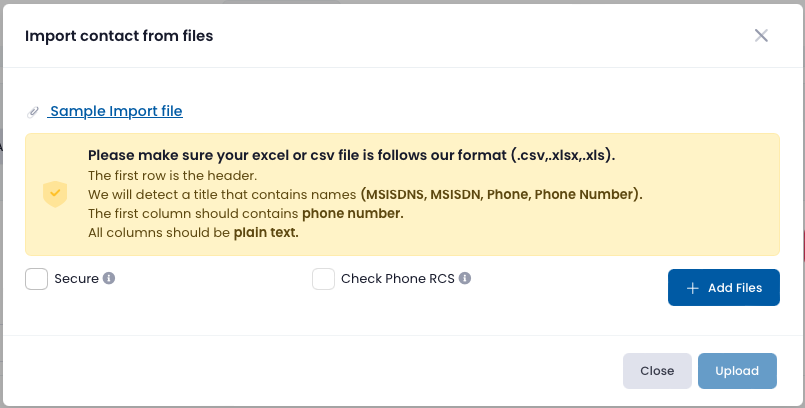
To upload the contact list, click on 'Contact Upload' button to upload the contact list. You may download the sample file by clicking the 'Sample Import File'. Once you have the file ready, add files and upload and your contact list shall be populated as shown in the diagram.
Broadcast to Contact List
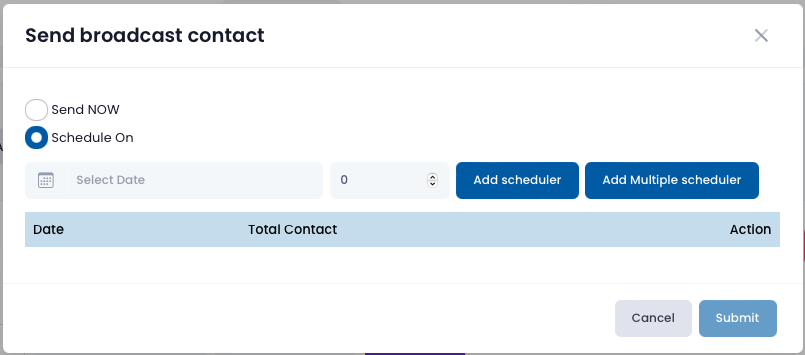
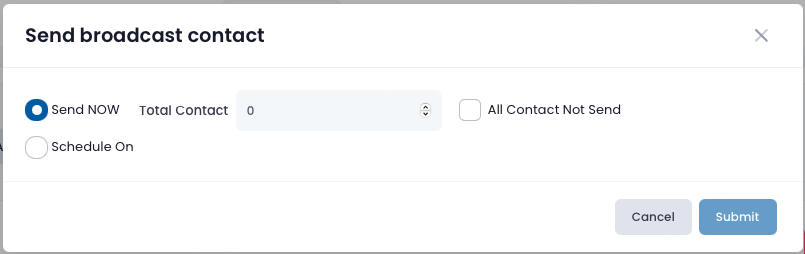
Click on the Broadcast button. You can either broadcast immediately or schedule the broadcast.
User can put in the number of contacts to send.
For scheduling the broadcast, select the date and time, key in the number of contacts to send and add to scheduler.