Conversational Message
Create the Messaging Template
Conversation Message:
Once the information template has been submitted, you shall see it on the screen. Click on the template name.

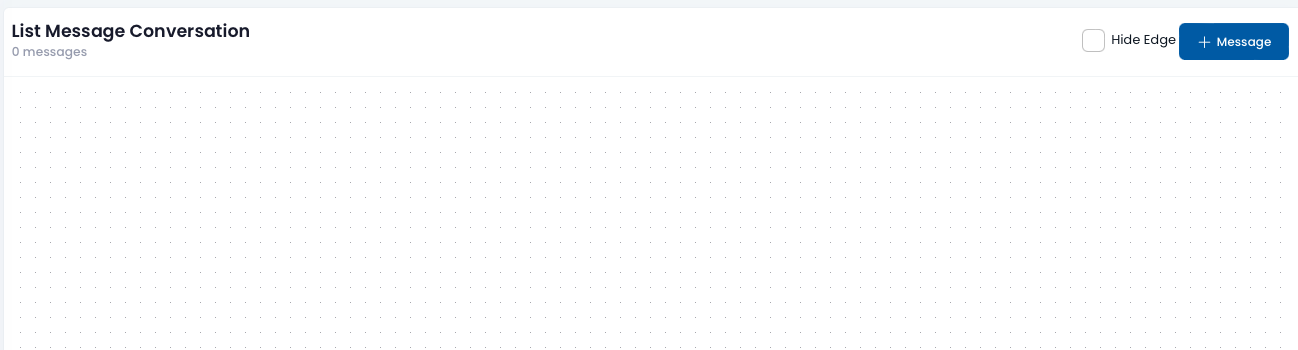
You will see a blank workflow after clicking the template name. Click on the '+ Message' button for every message that you want them in the workflow.
Fill in the details in the template message form.
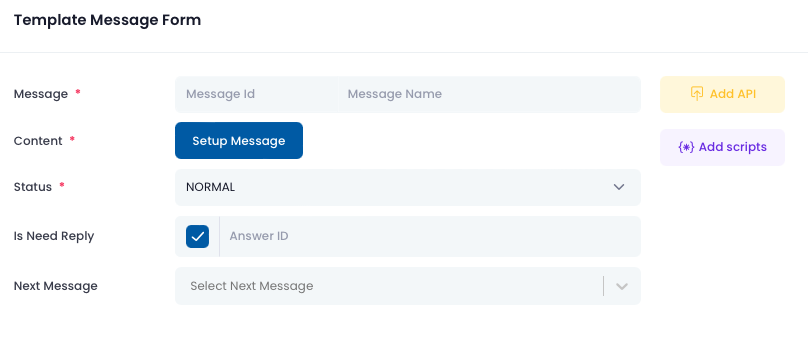
ii) Status: If it is the first conversation message, select 'Start', else choose normal.
iii) Is Need Reply: If the message has a reply button, enable this option. The Answer ID is the identifier in the report for users after the system receive the reply message.
iv) Next Message: This is the next message send to the user after the current message.
v) Content: Configures the message content. Refer to screenshot below.
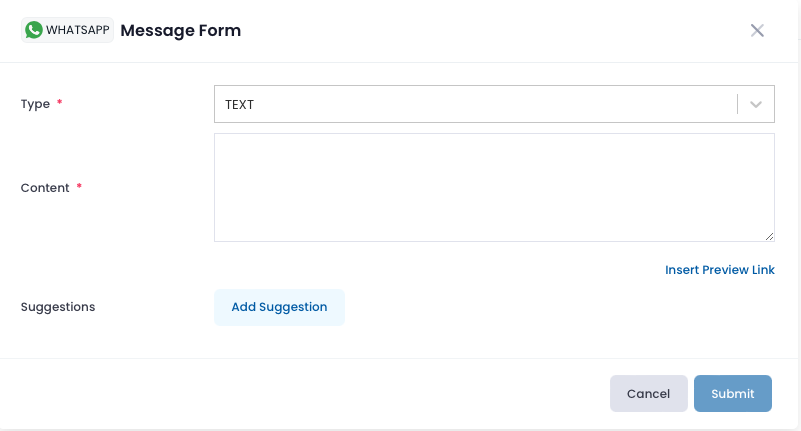
Select the type of WhatsApp message that you would like to send. Below shows the selection of type of message.
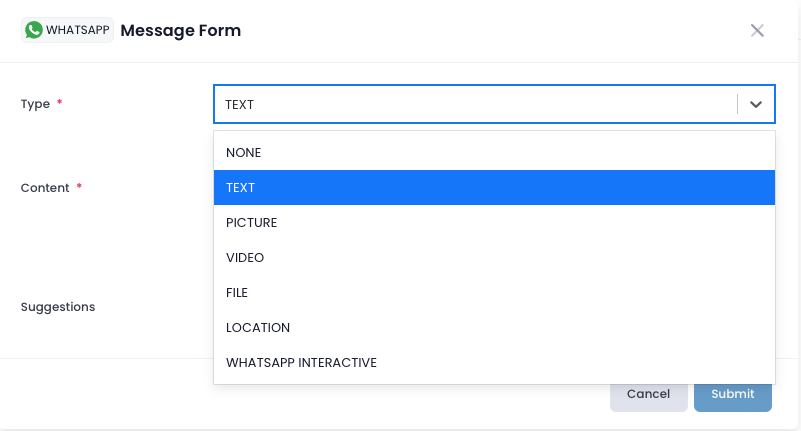
- None: Select none if this is to capture error message.
- Text: The message is text with buttons.
- Picture: The message contains an image.
- Video: The message contains a video.
- File: The message contains a file.
- Location: The message contains a location.
- WhatsApp Interactive: The message contains a header using text, image, video or document. There is a message body and footer with call to action buttons.